A Claude signup, subscription and KYC guide anyone can follow to avoid account bans
The power and value of Opus5.5 made me determined to use official Claude Code, whatever it took!
With guidance from @gkxspace and many others who shared tutorials, I finally put together a stable signup process. I have now used Claude Code on desktop and the Claude app on my phone for more than two weeks, subscribed to Max, and passed KYC verification.
This article walks through my entire process in detail. There are many small details, so I suggest bookmarking it first and following the steps carefully when you have time.
Because Anthropic bans accounts for varied and sometimes unpredictable reasons, this article only shares my actual setup process. It does not guarantee protection against account bans!
Check the prerequisites first:
- A passport (for payment and KYC)
- A local agent (Codex)
- A Mac (Windows settings differ from macOS, so I cannot guarantee the same results)
- An iPhone (optional, if you want to use the Claude app on your phone)
- Shadowrocket (to keep the routing rules consistent between your computer and phone)
All right, let's get started 👇
1. Create a brand-new Gmail account on your iPhone
Download Chrome on your iPhone, then create a Gmail account: tap the avatar in the upper-right corner → Add account → Create account. I was not asked to verify a phone number when I signed up.
Signing up on a computer may require phone verification. A mainland Chinese +86 number can pass this step, but if Claude later asks for a phone number, I personally think it could matter if the two services do not both use a US number (or a number from another supported region). Below, I also explain how to set up a US eSIM number on a mainland China iPhone.
2. Create a new US Apple ID and use a gift card to buy Shadowrocket
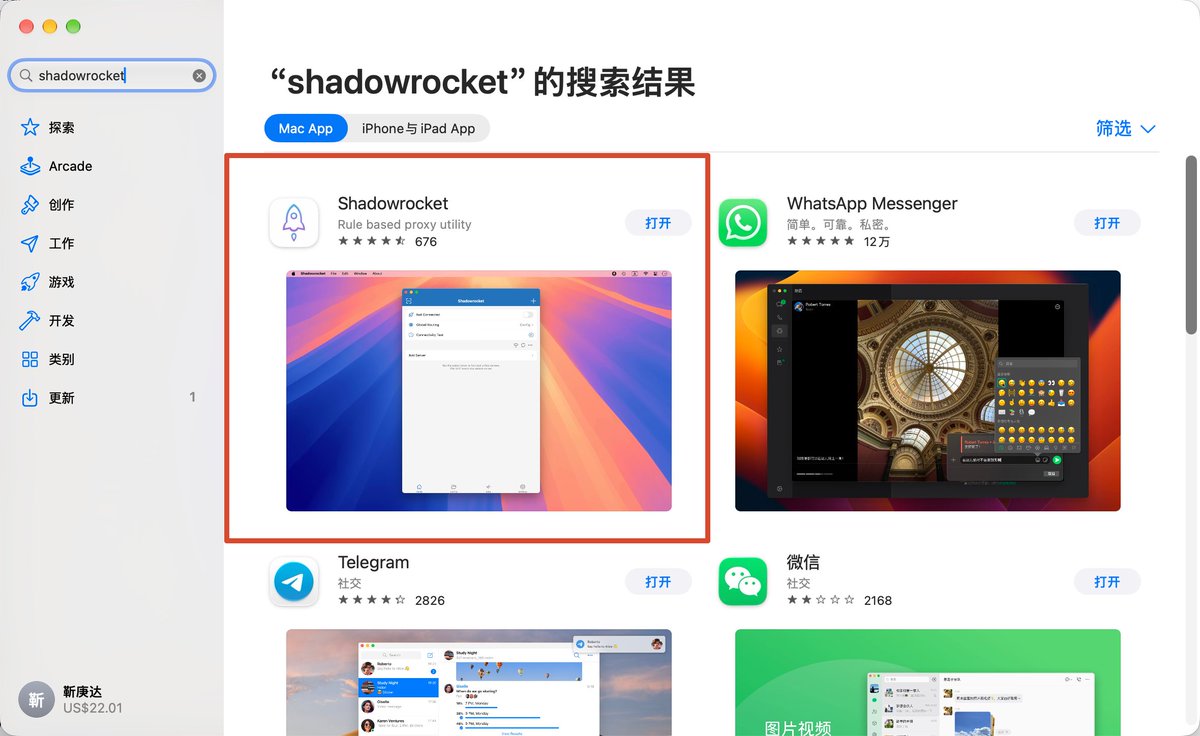
Shadowrocket costs $2.99. It is mainly used to configure the clean network connection and routing rules described later.
You also need a US Apple ID to find Shadowrocket in the App Store. First, let's create a free Apple ID.
Go to https://account.apple.com/account. You can register a US Apple ID here using a Chinese phone number.
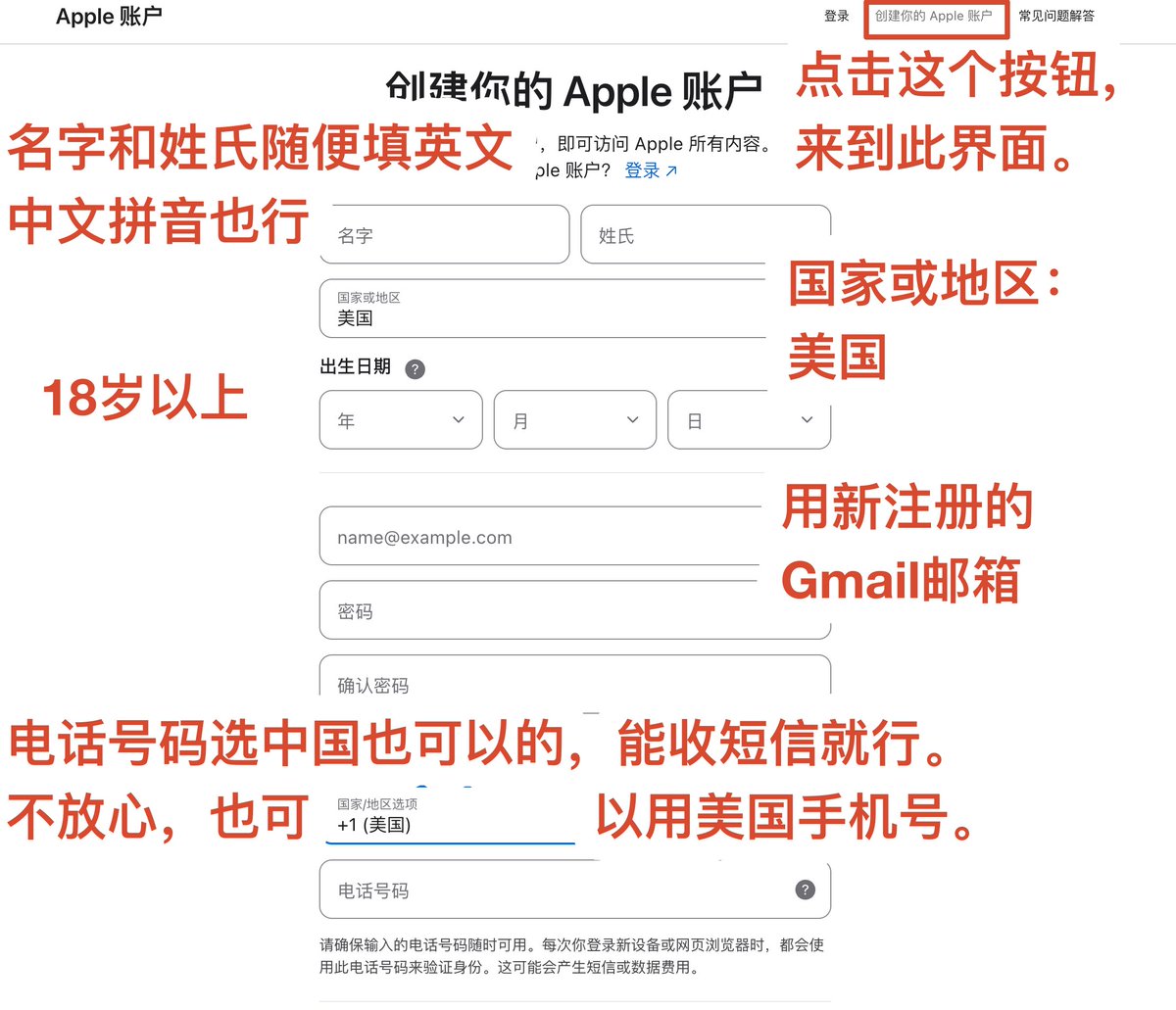
Then sign in to the App Store on both your Mac and iPhone with this newly created US Apple ID and buy Shadowrocket. There is one complication: without a US bank card, you cannot pay directly, so you first need to buy a gift card through Alipay.
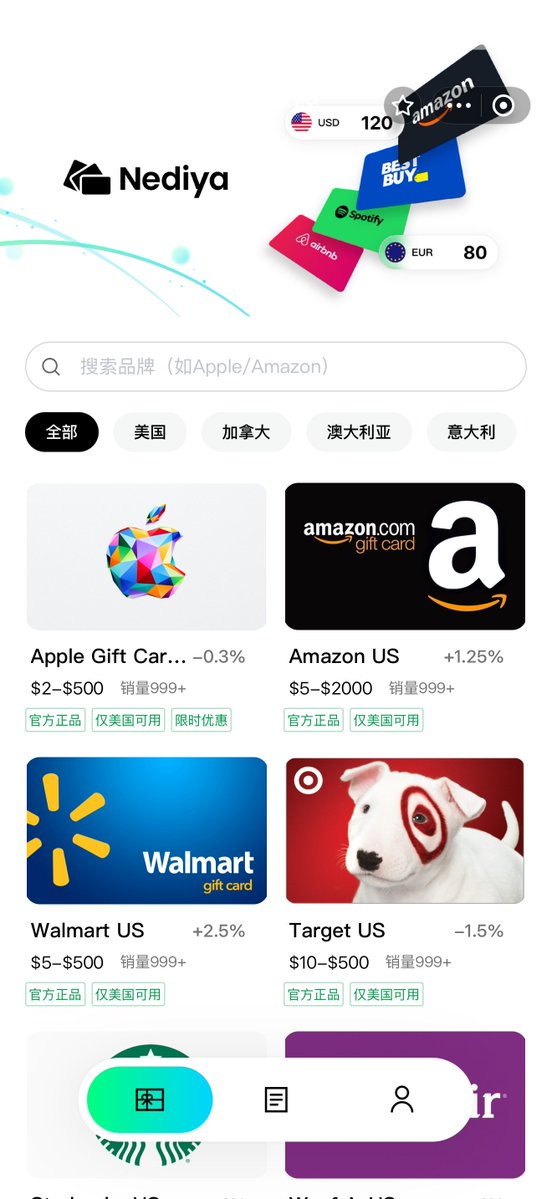
In Alipay, open “Nidiya Gift Cards.” On the screen shown here, select the first option, Apple Gift Card US. Buy a $3 gift card using the Google email address linked to the US Apple ID above, then download Shadowrocket from the App Store.
3. Set up a clean outbound IP address
In my view, many Claude account bans come from low-quality IP addresses that keep changing, so network configuration is the most important part of the entire signup process!
There are two choices: a self-hosted VPS or the IPEqual package. Both provide a dedicated, static US IP, with direct-connection latency around 150–190 ms.
The former offers more traffic and optimized routes to China, but is often out of stock and uses a datacenter IP. You also have to maintain it yourself when network problems occur. If you want a residential IP, you need to add another layer yourself, often from a large shared pool. Considering the combined cost and effort, the latter is preferable.
With the latter, technical support can fix problems quickly, so you do not have to manage them yourself. It also provides static residential IPs from selected ranges, optimized routes to China, no complicated proxy chaining, and dedicated one-to-one support. I only recommend Max or higher plans because those are dedicated.
I personally use a self-hosted VPS. If you are interested, see this post; I will not go into it here.
Embedded post: https://x.com/i/status/2029570219354845577
I first learned about IPEqual from a YouTube creator and recently recommended it to friends. They also reported good speeds, with latency similar to the VPS option. If you want to use Claude quickly without a complicated setup, you can buy it here: https://www.equaldcdn.com
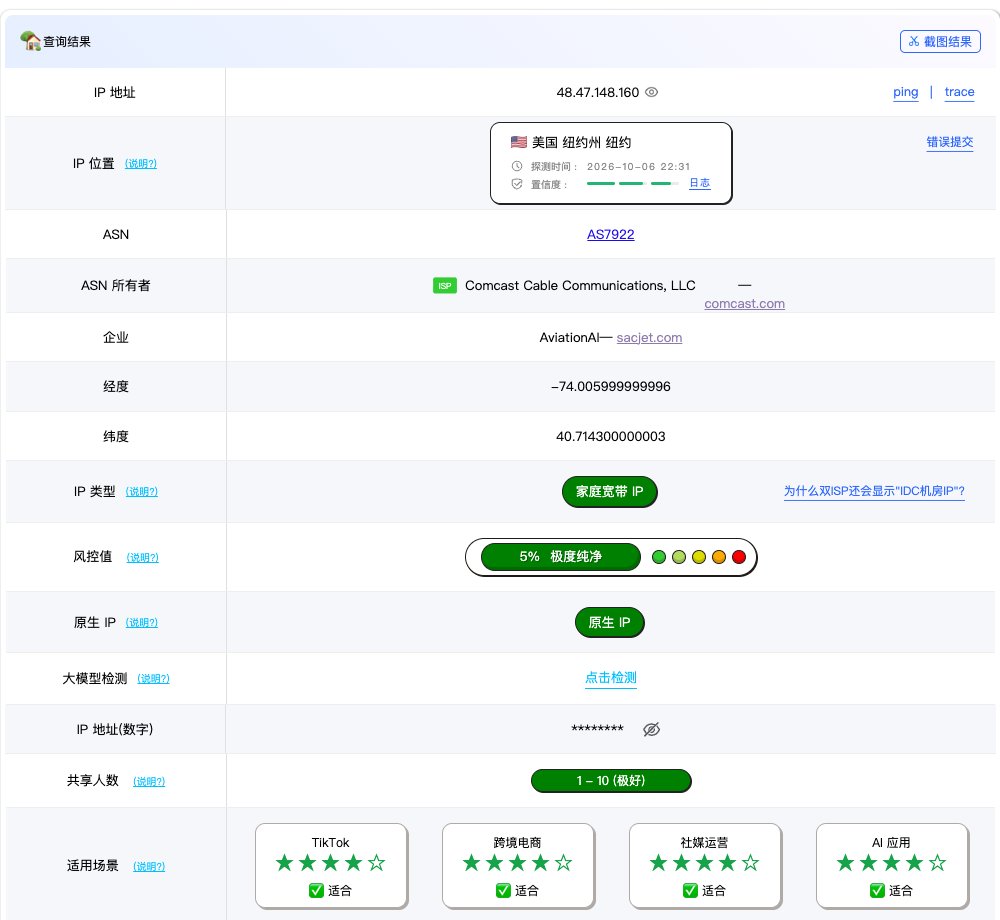
After buying or setting up the service, import the link you receive into Shadowrocket. Tap the + in the upper-right corner, then Import. If you are unsure how, Codex can help import it. You will then have a stable outbound IP.
4. Clean up old Claude logins and forwarding settings
I think my earlier Claude ban may have been related to messy old configuration that I had not cleared out. This time, I thoroughly cleaned up Claude Code, CC Switch and Claude Desktop.
I used the claude-cleanup Skill, preserving Claude Code's conversation history, Skills, plugins and custom configuration. Third-party forwarding settings and Shadowrocket routing were handled separately.
You can hand this step directly to Codex. For those of us without a technical background, editing the code ourselves can be confusing...
1. Exit Claude first, then copy the following prompt to Codex
Quit Claude Desktop and any running Claude Code sessions, but keep Codex open. Computer Use may be needed to operate CC Switch. Then send:
I plan to use an official Claude account. Please inspect the old Claude Code and Claude Desktop configuration on this Mac.
First obtain and review this claude-cleanup Skill. Use its allowlist and protected scope for a read-only audit; do not run its cleanup script yet:
https://github.com/suyuan2022/suyuan-skill/blob/423473db6b618c7e040f1a5a6879bc83e69e8b3b/claude-cleanup/SKILL.md
First give me a short cleanup plan:
1. Check old login credentials, account caches, and Claude caches and logs.
2. Check userID and machineID in the main identity file, and explain the impact and scope of resetting these local identifiers.
3. Check third-party API endpoints, authentication overrides and model mappings in Claude Code. If CC Switch is used, prepare to switch back to Claude Official and disable Claude takeover.
4. Preserve conversation history, Skills, plugins, Hooks, custom rules, persistent desktop data, and configuration that other tools such as Feishu depend on.
Do not wipe the entire .claude directory or CC Switch database, and do not uninstall applications. Do not output passwords or tokens. First tell me what you would handle, what you would preserve, and the impact. Wait for my confirmation before proceeding.
2. Perform the cleanup
Send this to Codex:
Follow the checklist you just provided. First make a complete local backup of the relevant configuration. Normally exit the Claude processes that need to be closed, then clear the confirmed old logins, account caches, caches and logs; reset the confirmed local identifiers; and remove Claude Code's old third-party forwarding configuration.
Move files only to the Trash. Delete only the Claude Keychain entries explicitly listed earlier. Preserve all other data and settings, and verify each change afterward. If switching providers accidentally clears other settings, restore those settings precisely from the backup.
When finished, tell me the results, the backup location, and which applications I need to reopen.
If the script asks you to type CONFIRM in the terminal, enter it yourself as Codex instructs. Once verification is complete, reopen the applications as directed.
I went through two rounds: first clearing old logins and caches and resetting some local IDs; later, using this Skill to move the Claude desktop application and five desktop data items to the Trash. Claude Code history, Skills, shared CC Switch configuration, and a copy of the old identity file were preserved.
The prompts above preserve the desktop application's data and the application itself by default. If you also want to clean up the desktop application, explicitly say so when Codex lists the changes, so you can safely start fresh.
5. Configure Shadowrocket routing
The goal is simple: Claude on your computer and phone should both use the same fixed node prepared earlier, minimizing IP changes.
The following three screenshots help you check the settings. You can give Codex the prompt that follows to perform the setup.
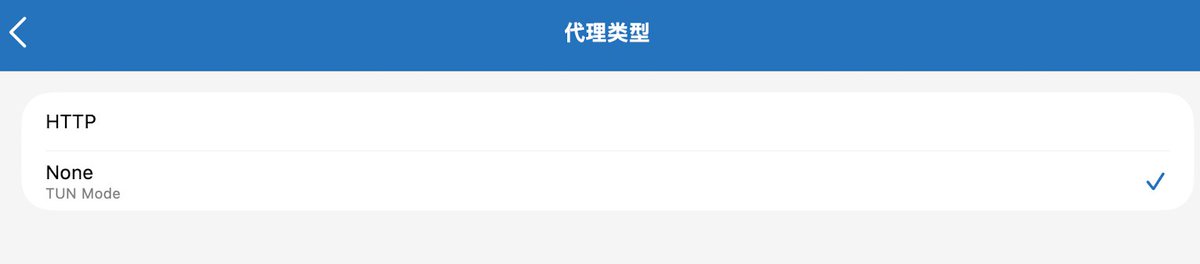
Configure Shadowrocket's TUN mode: Settings → Proxy → Proxy Type → None (TUN Mode).
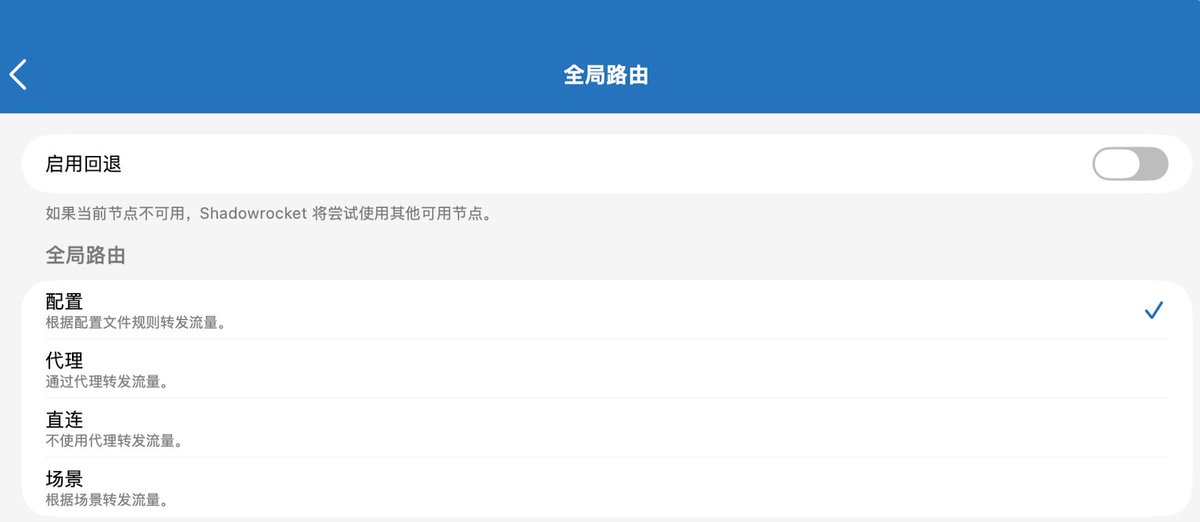
“Global Routing → Configuration” applies routing rules. Enable it too; Codex will modify the rules later in the tutorial.
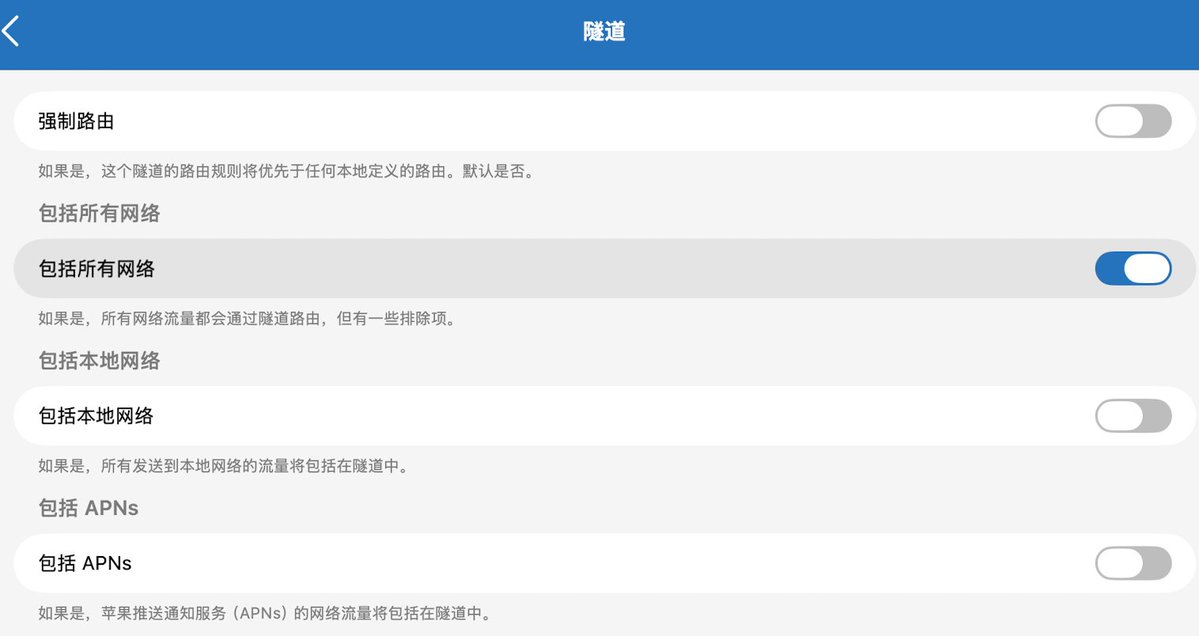
Also enable “Settings → Tunnel → Include All Networks” on both Mac and iPhone. This passes ordinary application network traffic to Shadowrocket, which then uses the routing rules to choose a node or a direct connection. After enabling it, you still need to verify that Claude requests use the specified node.
1. Select a node and copy the prompt to Codex
On Shadowrocket's Mac home screen, select your fixed node and set “Global Routing” to “Configuration.”
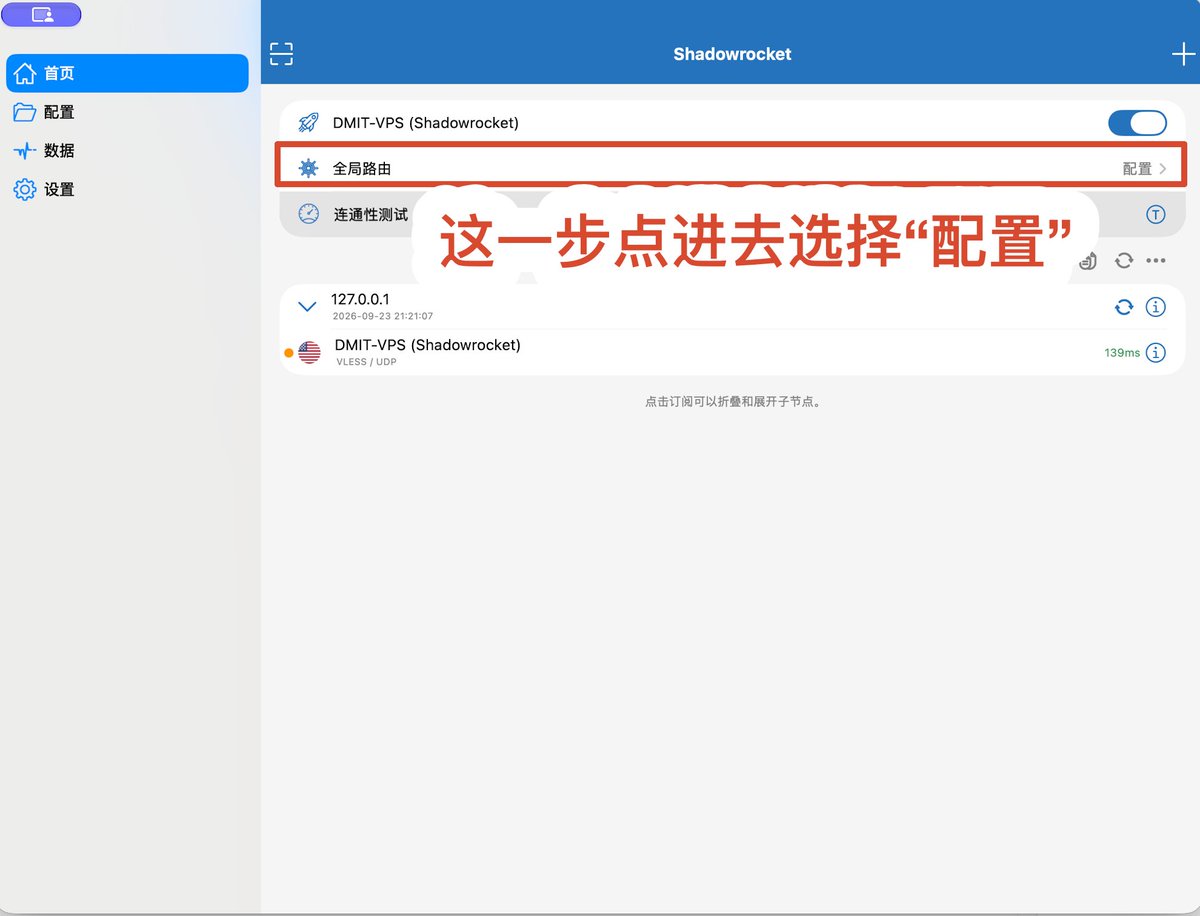
If you previously used another proxy tool such as Clash, some programs may still have old proxy addresses saved. This can leave your browser working while Claude Code cannot connect. You do not need to find the files yourself; include the checks in your request to Codex.
Give your node any name, replace [NODE NAME] below with the name shown in Shadowrocket, and send this to Codex:
Please configure Shadowrocket on my Mac to always use node [NODE NAME].
Check and set “Settings → Proxy → Proxy Type” to None (TUN Mode), and use “Configuration” for Global Routing. Enable “Settings → Tunnel → Include All Networks,” confirm the switch is active, and then verify that Claude requests match the specified node.
Add DOMAIN-SUFFIX rules for the following four domains, covering each domain and all of its subdomains, using the specified node:
anthropic.com
claude.ai
claude.com
claudeusercontent.com
Back up the configuration before making changes and preserve other routing rules. Claude rules must not use direct-connection fallback or automatically switch nodes. Check the rules actually loaded and verify the real outbound connection under normal operation.
Also check whether old proxy settings conflict with the current Shadowrocket setup, including system proxies, environment variables, shell startup files, npm, Git, Homebrew and Claude settings. Assess each setting's purpose, handle only broken or conflicting entries, and preserve working configuration. If changes are needed, first list the exact changes and their impact; back up before editing and verify afterward that the actual Claude client can connect normally.
Do not output passwords or tokens, and do not blindly reuse old Clash ports or proxy-group names.
Prepare the same Claude routing configuration for iPhone. Next, I will open iPhone Mirroring so you can continue configuring the phone. Finally, explain what has been verified and what still needs to be done.
2. Configure the phone with iPhone Mirroring and Codex
Open “iPhone Mirroring” on your Mac and complete the initial connection as prompted. The iPhone and Mac must use the same system Apple Account, which is separate from the App Store purchase account. Enable Wi-Fi and Bluetooth, keep the phone near the Mac and locked, and start the connection.
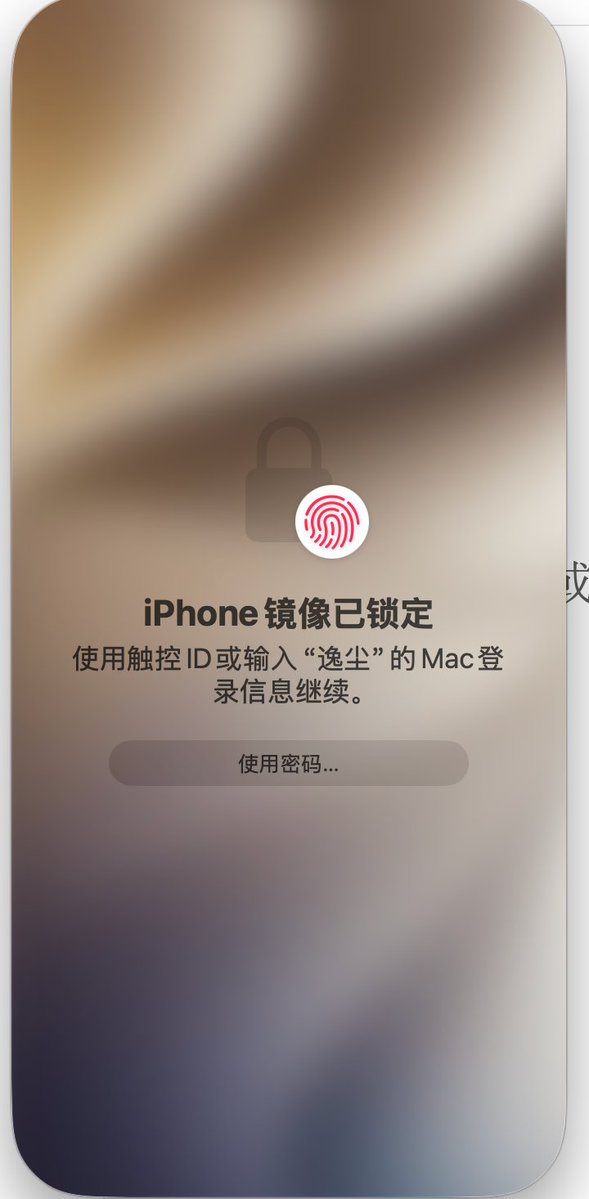
Once the phone screen appears on your Mac, send this in the same Codex conversation:
I have opened iPhone Mirroring. Please use Computer Use to operate the mirroring window and complete Shadowrocket setup on my phone:
1. First back up the phone's existing configuration, preserve other routing rules, and add the four Claude domain-suffix rules prepared earlier. Confirm that those domains and their subdomains use the same fixed node, select “Configuration” routing, and connect.
2. Set “Settings → Proxy → Proxy Type” to None (TUN Mode), enable “Settings → Tunnel → Include All Networks,” and enable “Always On.” Identify the corresponding controls in the current version and verify them.
3. Separately verify that Claude requests from the Mac and iPhone match the specified node and check the node's actual outbound IP. Do not rely only on an ordinary IP lookup page to judge whether routing is correct.
If a password, Face ID or system authorization is required, tell me to take over. Do not open WeChat or change unrelated settings. If you cannot operate the mirror, or changing the VPN disconnects it, say exactly where you stopped and give me the shortest handoff steps. Continue verification once the connection is restored. Do not report unfinished tasks as complete.
6. Change the time zone on Mac and iPhone
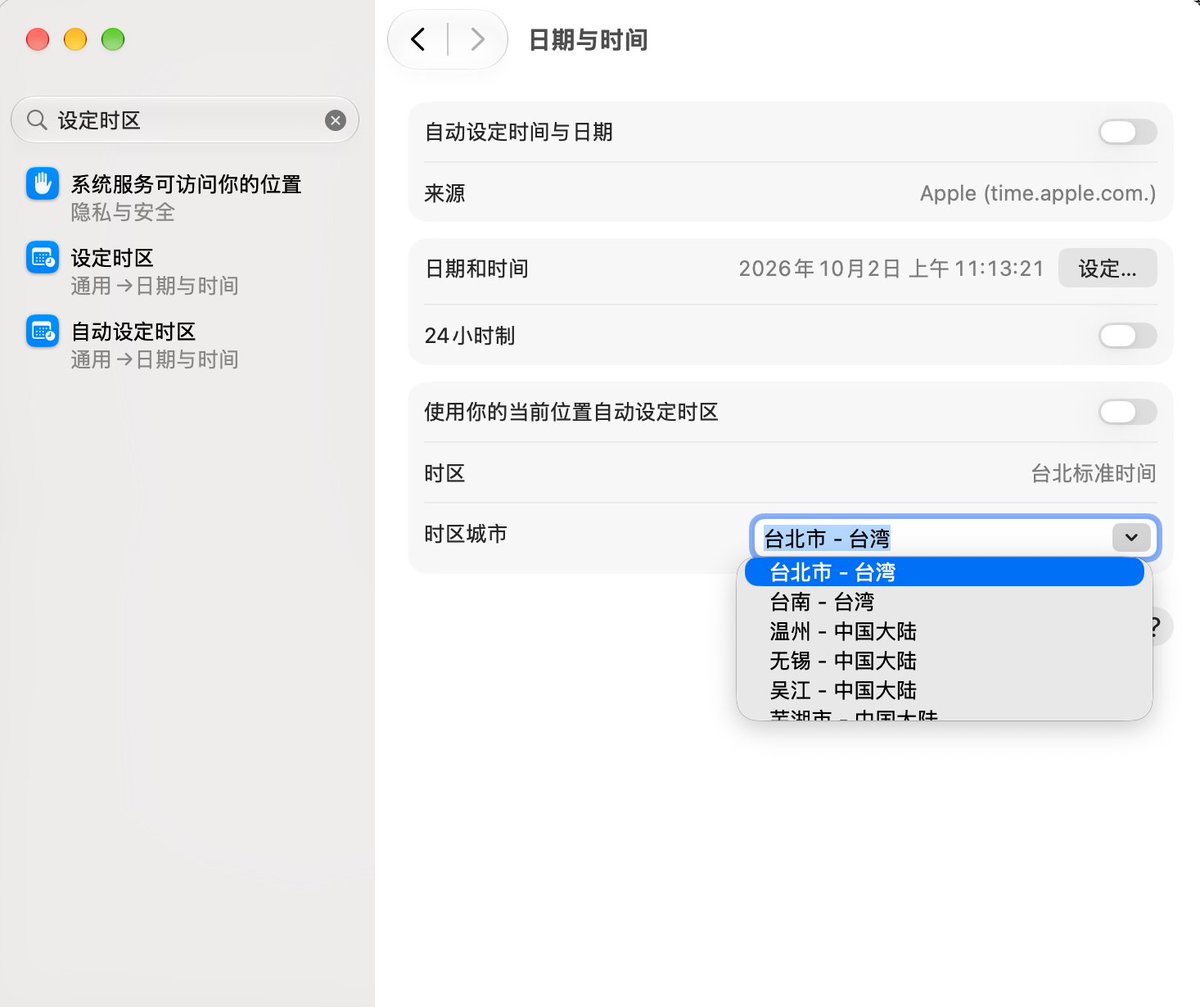
Mainland China and Taipei use the same time, and Claude is available in Taipei, so Taipei is a good time zone choice.
On Mac:
- System Settings → search for “Time Zone” → change it to “Taipei City, Taiwan”
- Turn off “Set time zone automatically”
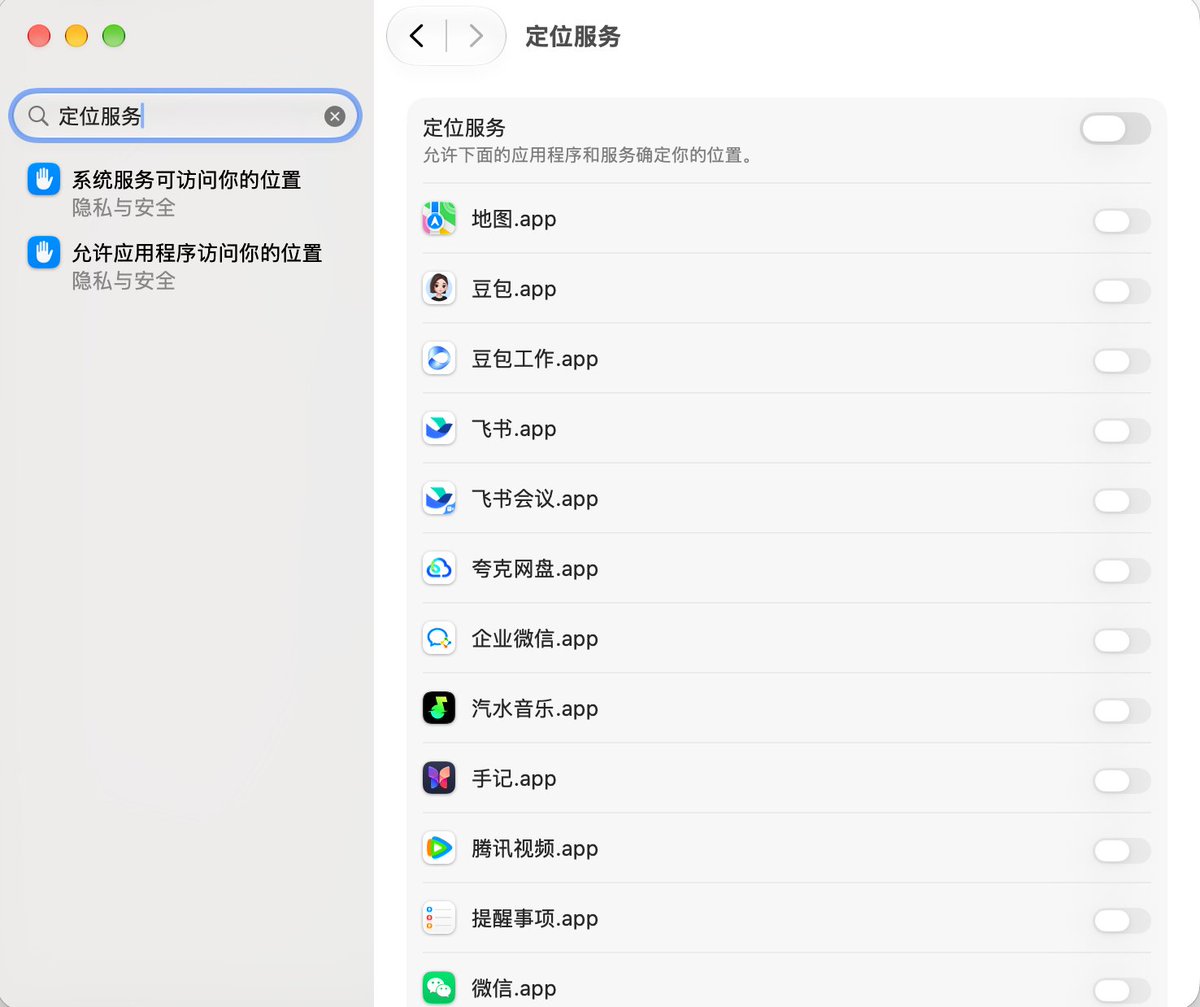
- Search for “Location Services” → turn off Location Services
On iPhone:
- Settings → search for “Date & Time”; choose “Taipei Standard Time” as the time zone and “Taipei” as the city
- Turn off “Set Automatically”
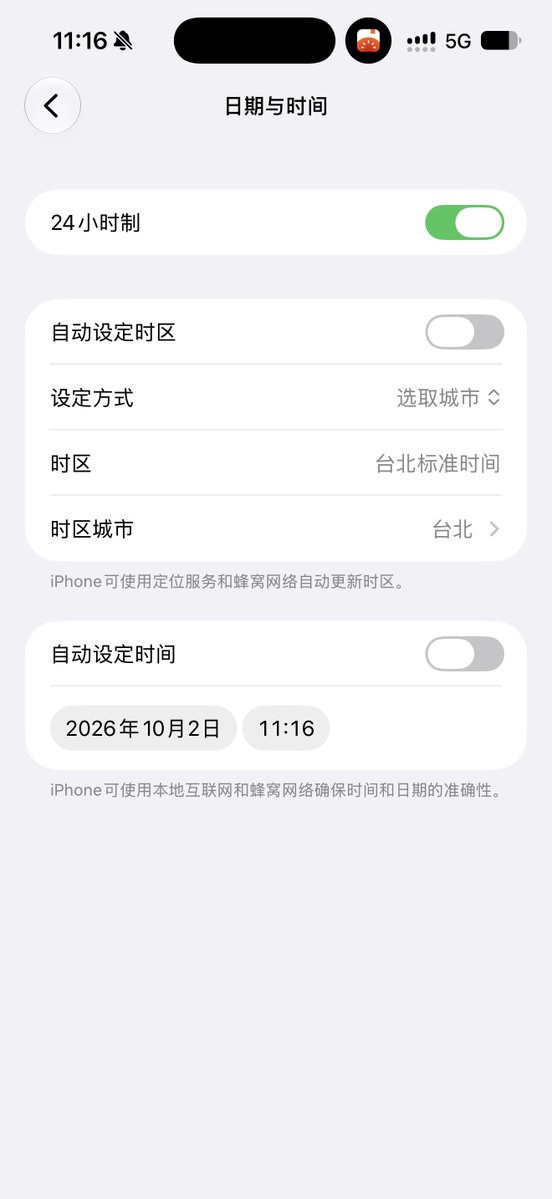
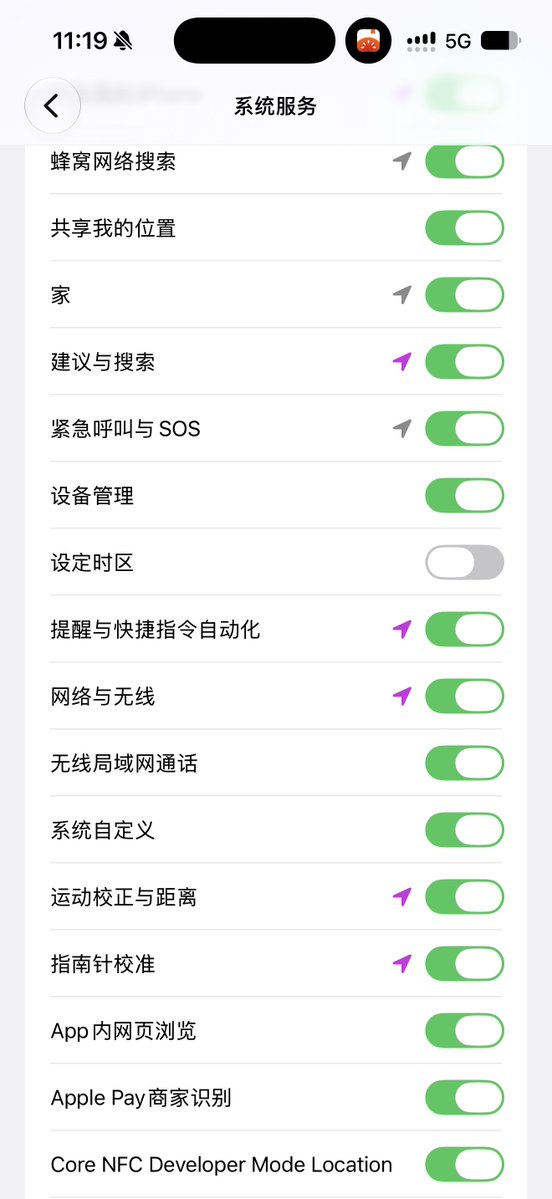
- Settings → search for “System Services” → turn off “Setting Time Zone”
7. Register a brand-new free Claude account
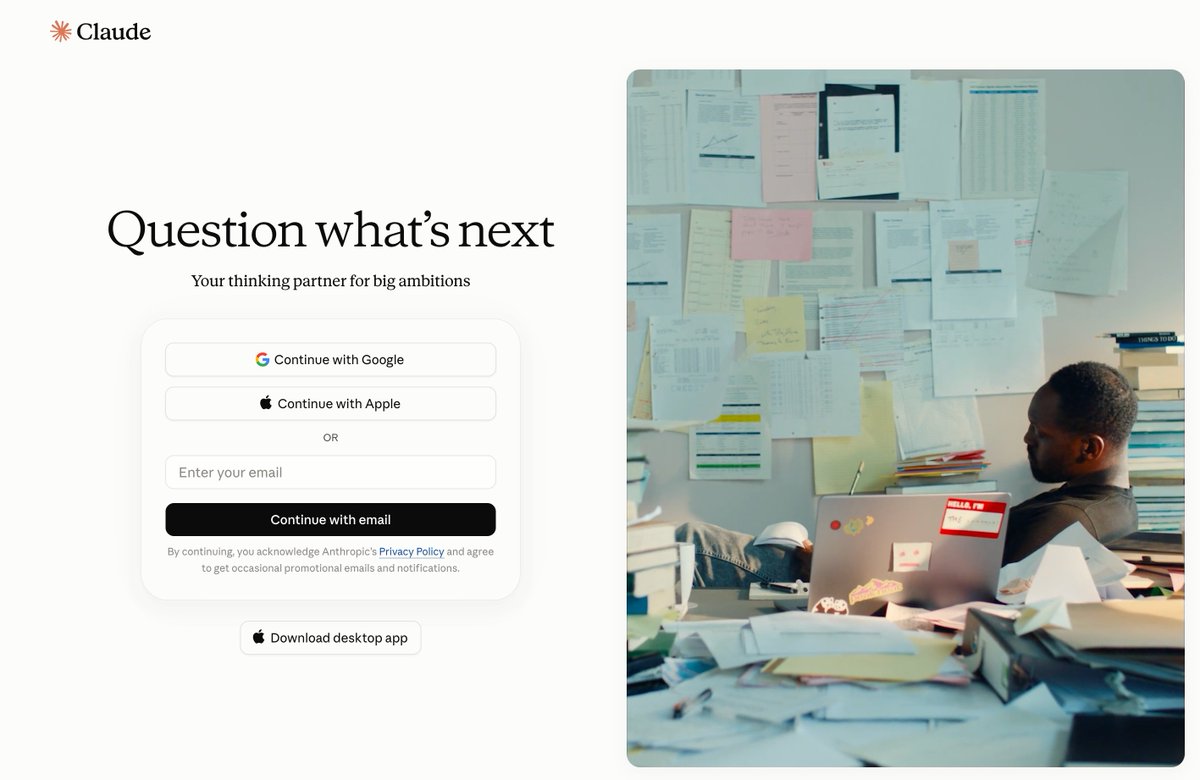
Everything is ready; now it is time to sign up for Claude! Sign in to Chrome with your new Gmail address, open claude.ai, and select “Continue with Google.” Follow the instructions. When you reach the phone-number step, you can enter it or leave it blank.
8. Link a US phone number
Follow this section if Claude asks you to verify a phone number. If it does not, you can skip ahead to the subscription section.
Some people encounter phone verification and others do not. Just in case, I will still share the method with you.
I chose a RedPocket US phone number plus a BeeSIM adapter card. Mainland China iPhones cannot install RedPocket eSIMs directly, so I used a physical BeeSIM adapter.
RedPocket costs $30 per year, and BeeSIM costs $19.90 as a one-time purchase. Follow the tutorial and use my links to get the discounted price.
This is a physical card that goes into a SIM slot, so you need to leave a slot available. Even the fastest shipping takes a day or two, so I suggest ordering it in advance.
1. Buy a RedPocket plan
- Open the RedPocket product page on eBay
RedPocket's own website requires a US bank card. On eBay, you can pay directly with a Chinese PayPal account, and the price is lower.
Product page: https://www.ebay.com/itm/136840233242
A Chinese PayPal account is easy to register, so I will not cover that here.
- Buy the plan
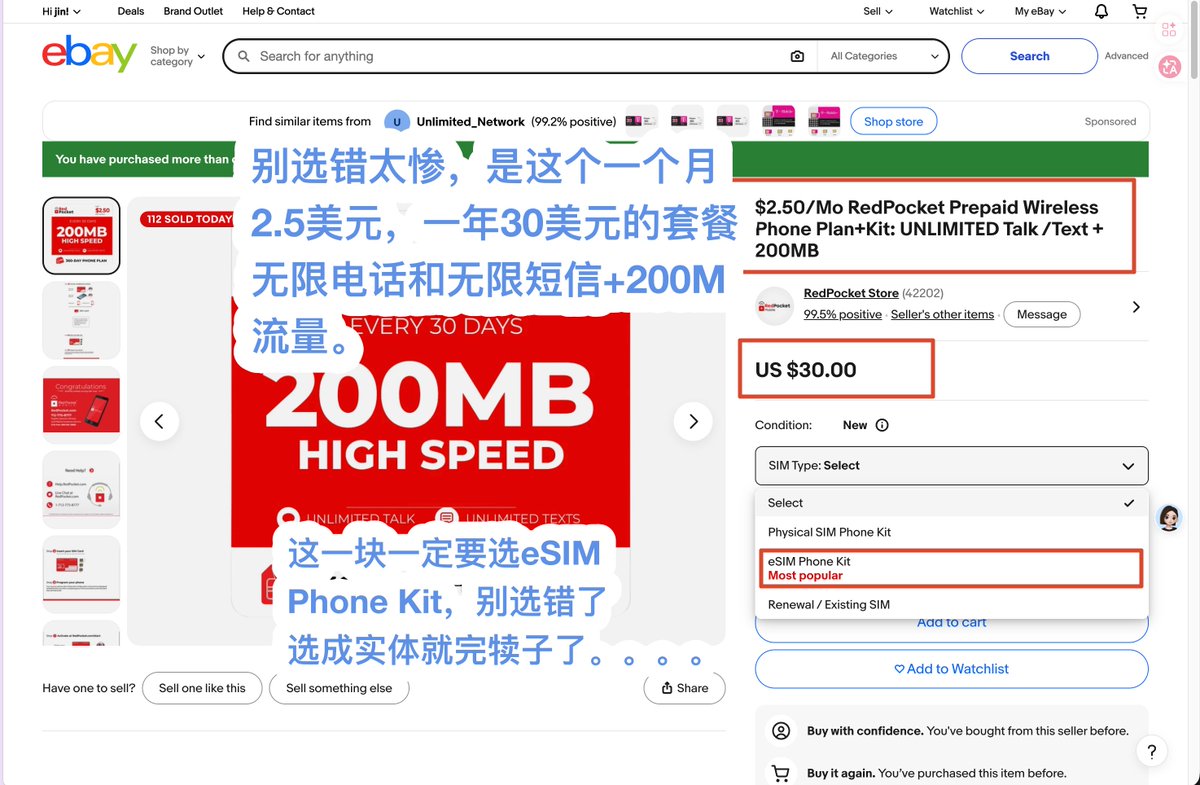
You can sign in or check out as a guest. Choose the plan costing $2.50 per month, or $30 per year. In the dropdown, select “eSIM Phone Kit (Most popular),” then click “Buy it now,” which is hidden behind the dropdown in the screenshot.
- Enter the required information and pay with your Chinese PayPal account.
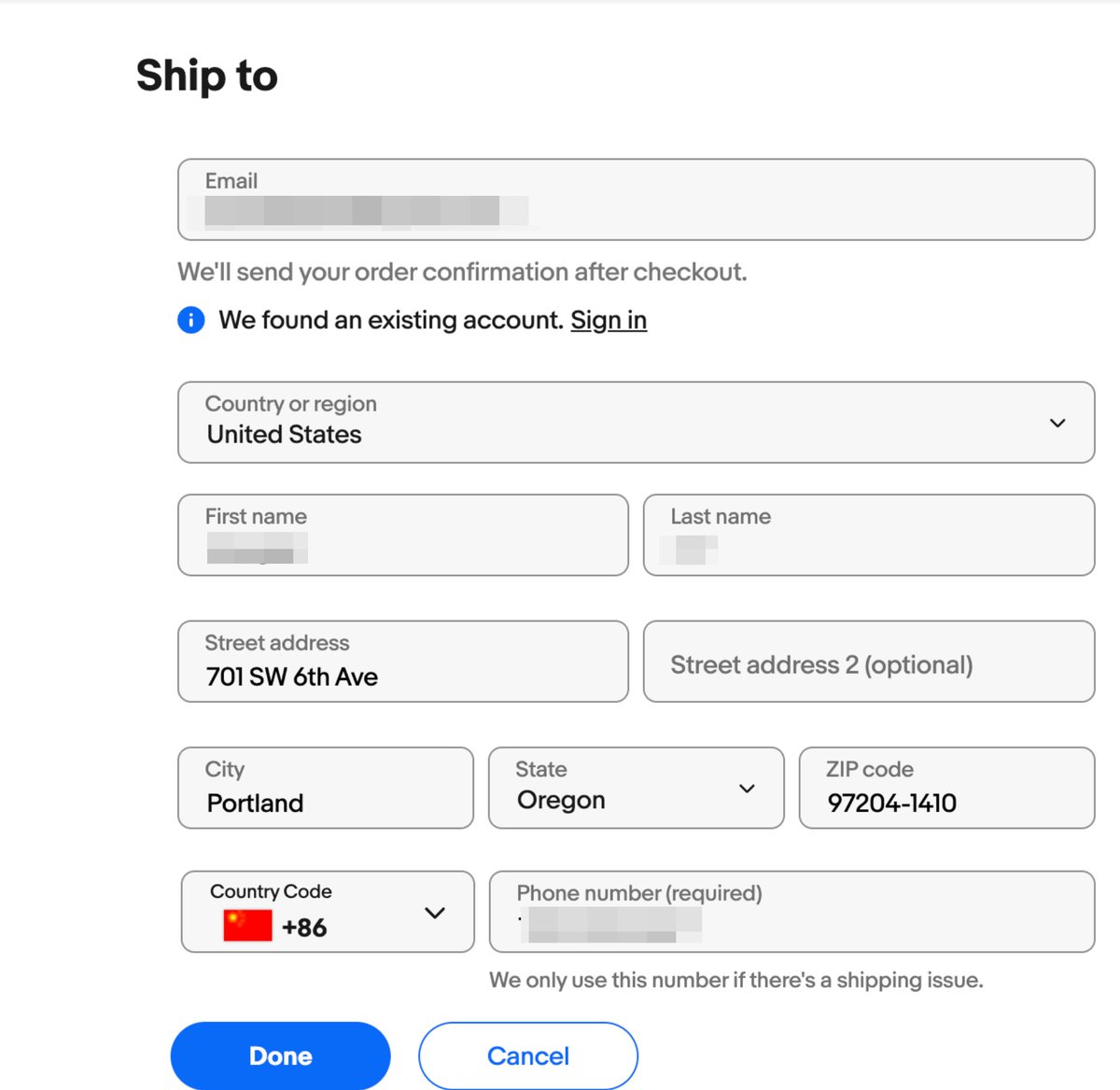
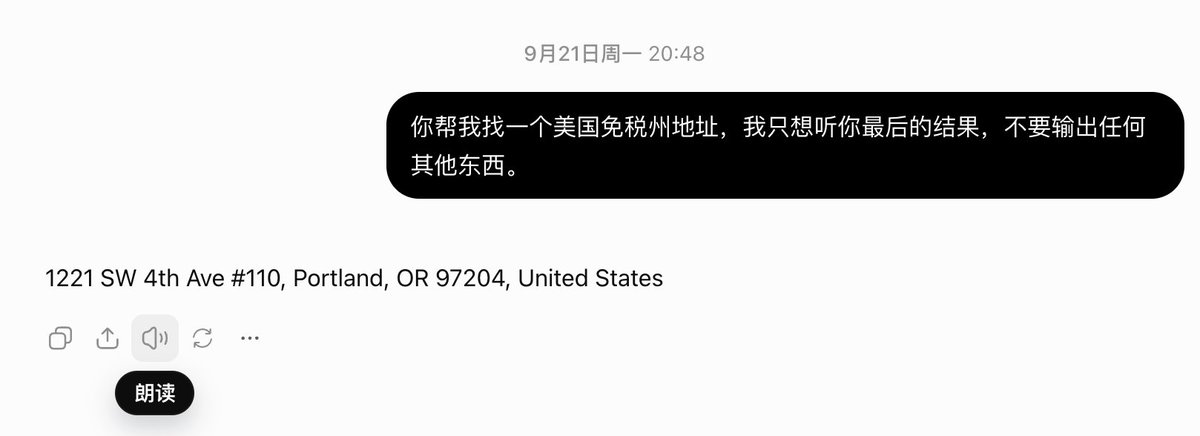
Use ChatGPT or Google Maps to find an address in a US state without sales tax.
You can enter your Chinese phone number in the phone field.
2. Activate the service and enable roaming
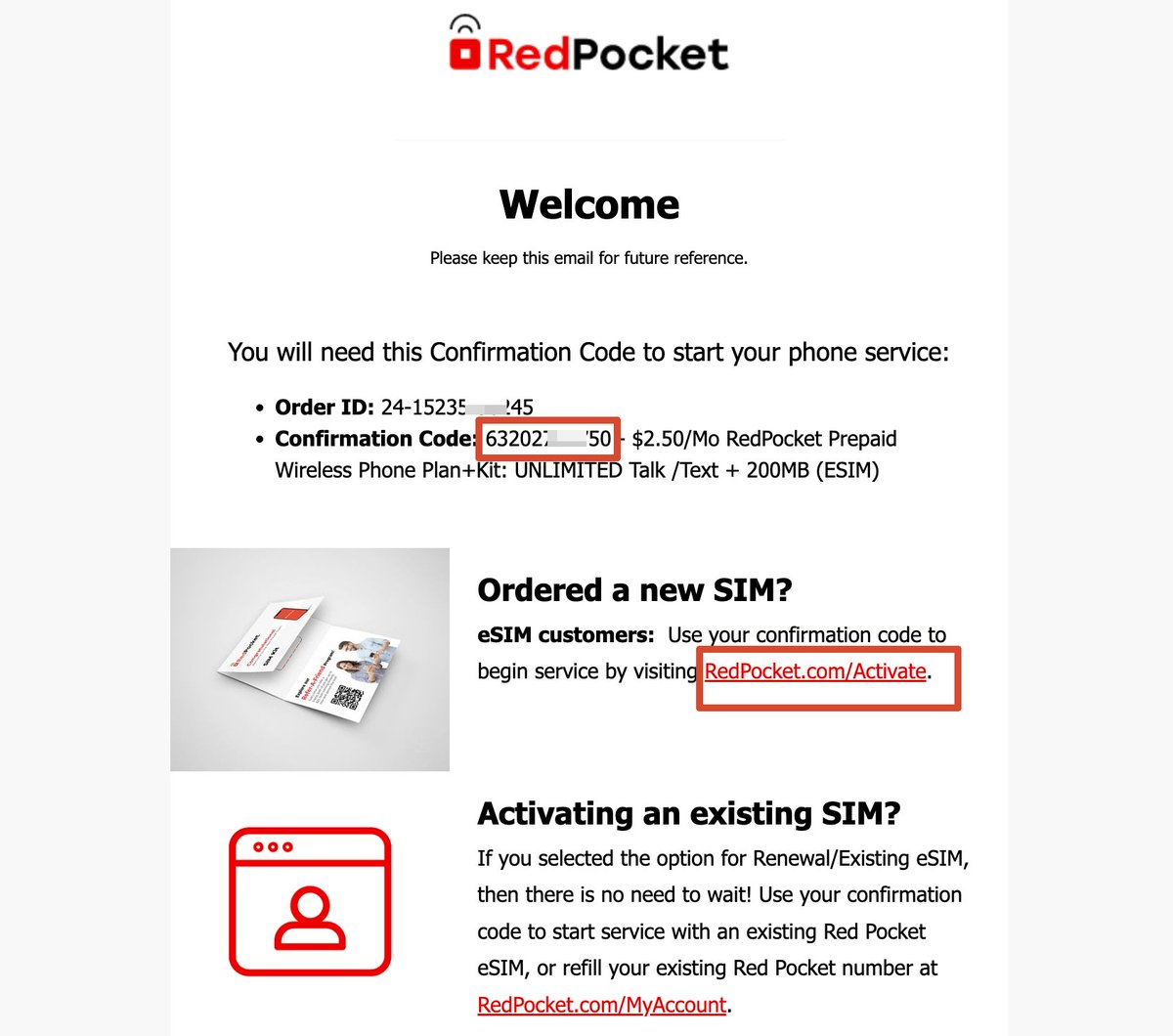
After payment succeeds, wait about ten to twenty minutes, then find the RedPocket email in the inbox you entered above.
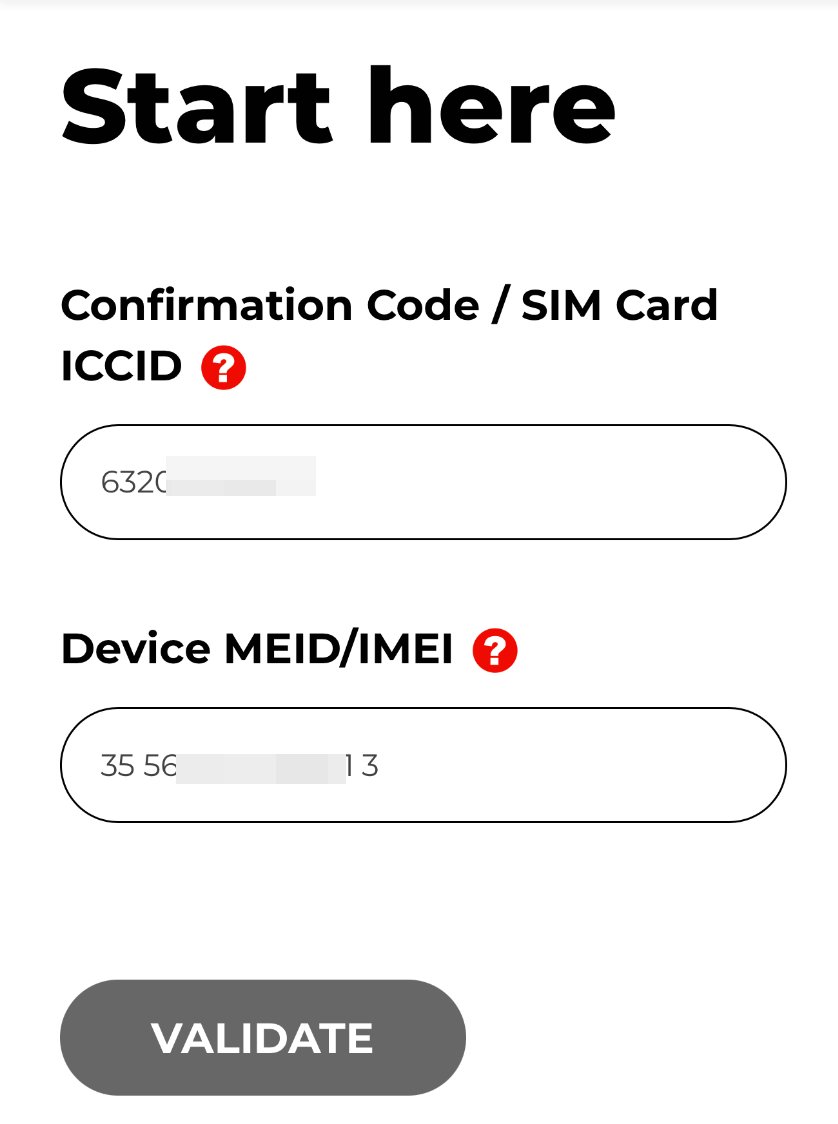
Open redpocket.com/activate and enter the Confirmation Code.
For Device MEID/IMEI below, find your IMEI on the iPhone under Settings → General → About → IMEI.
Next, find the “Roaming” screen in the app. Recently I have been unable to log in to RedPocket's website on my computer for some reason, so I have had to use my phone. The entry point differs slightly between phone and computer, but you should find it by looking carefully. Enable Roaming, choose “CHINA” in the dropdown, and look for “It's Enabled.” That means activation and roaming were successfully enabled.
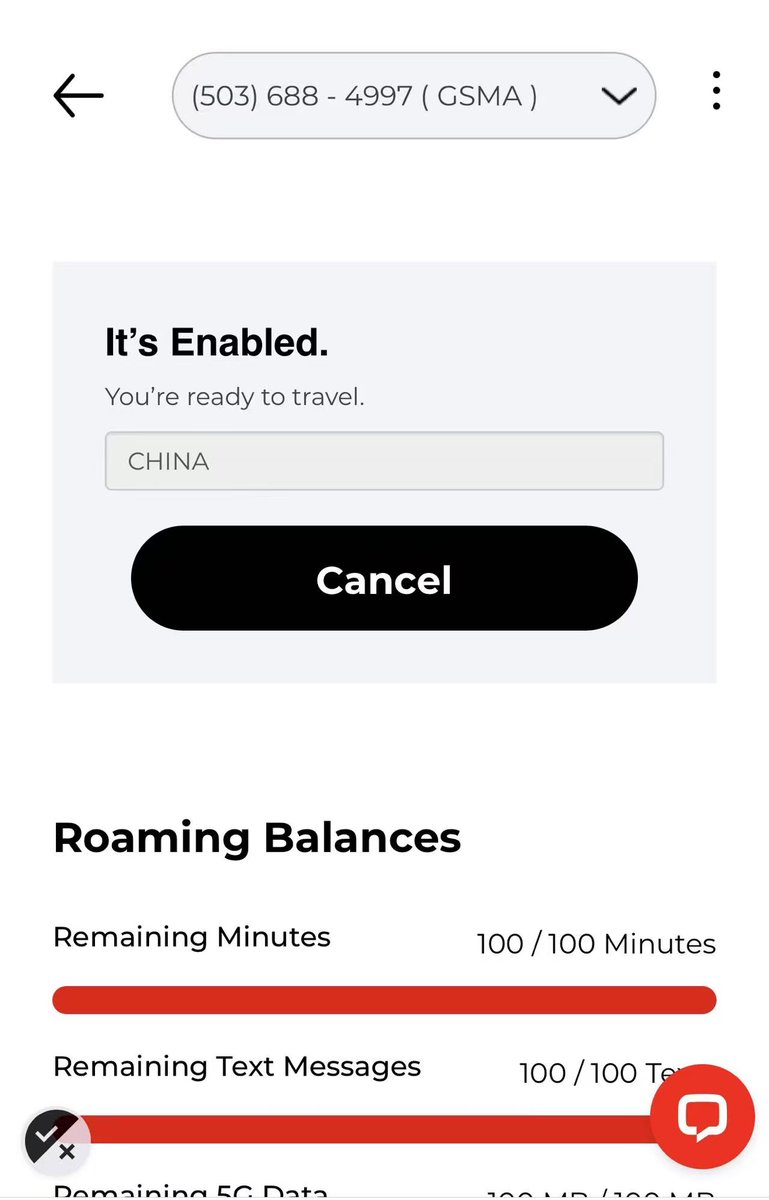
Note: Roaming Balances may show a zero balance, which happened to me. There are two ways to handle it:
- Method 1: Contact support in the lower-right corner and ask them to restore the plan allowance. Others have succeeded with this.
- Method 2: Contact eBay support about the missing plan allowance, request a refund to PayPal, and buy the plan again a day later.
3. Import the eSIM into BeeSIM
If everything above is working normally, it is time to load the number onto BeeSIM.
First, buy the BeeSIM card. Use this link to get the discount: https://shop.beeesim.com
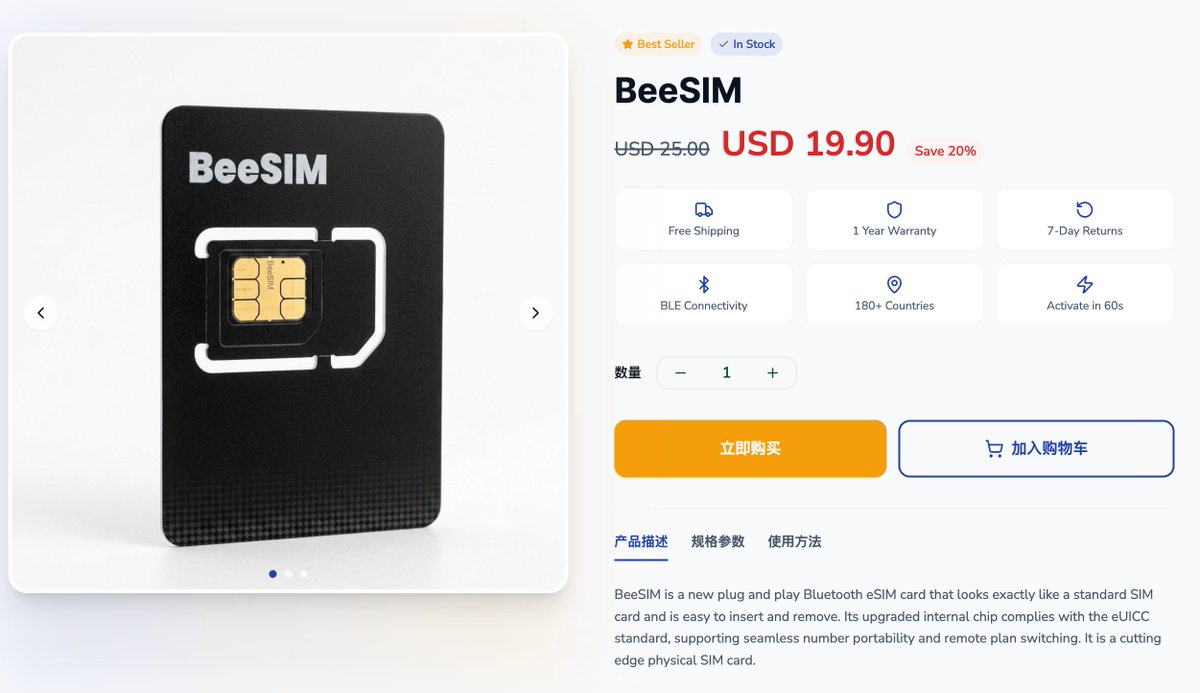
The envelope you receive has a QR code. Scan it in WeChat to open the BeeSIM mini program, or search WeChat directly for BeeSIM.
Then enable Bluetooth and connect BeeSIM.
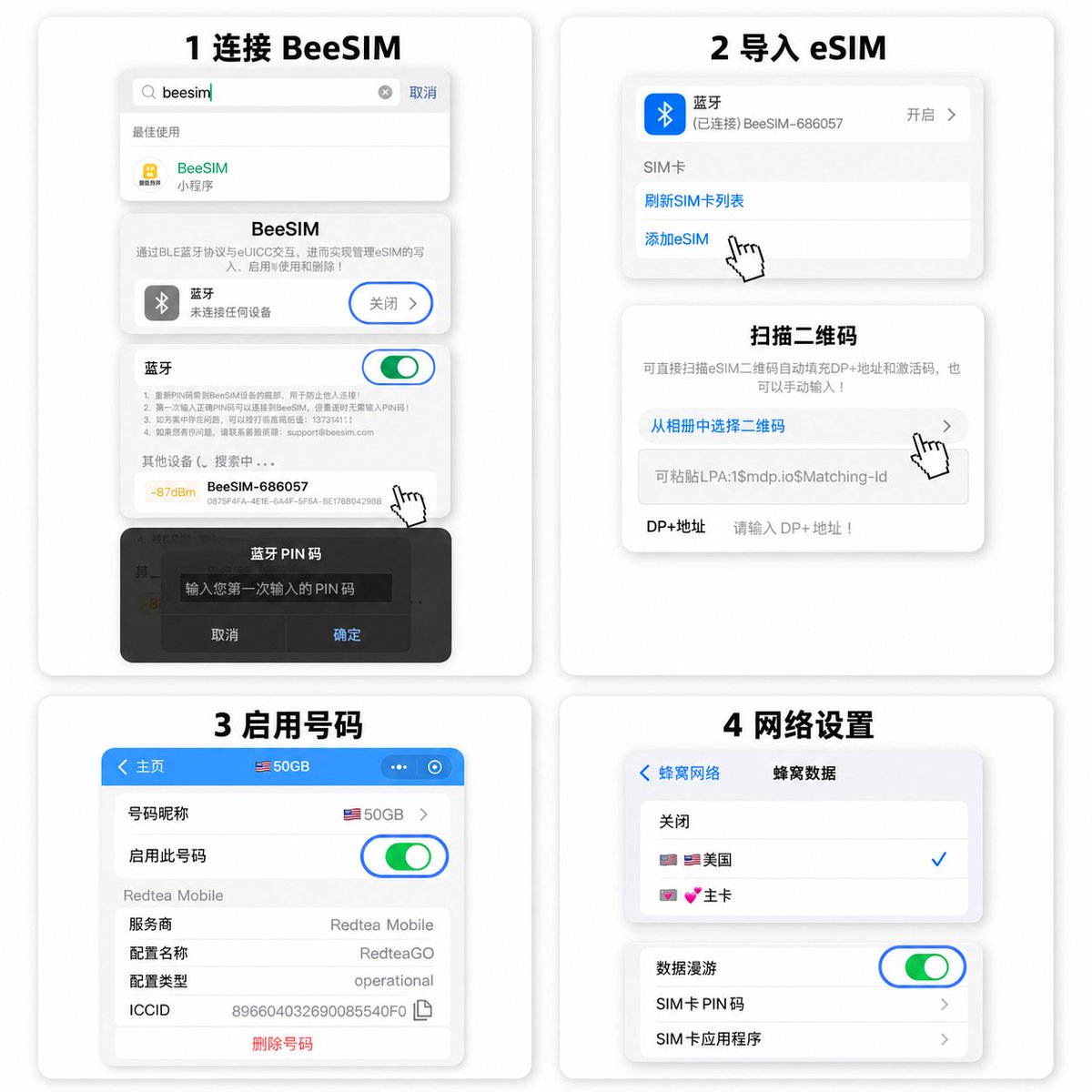
To import the eSIM, find the RedPocket email containing your US phone number and QR code.
Use BeeSIM's QR scanner to import the information and link it. Follow the images for the remaining steps.
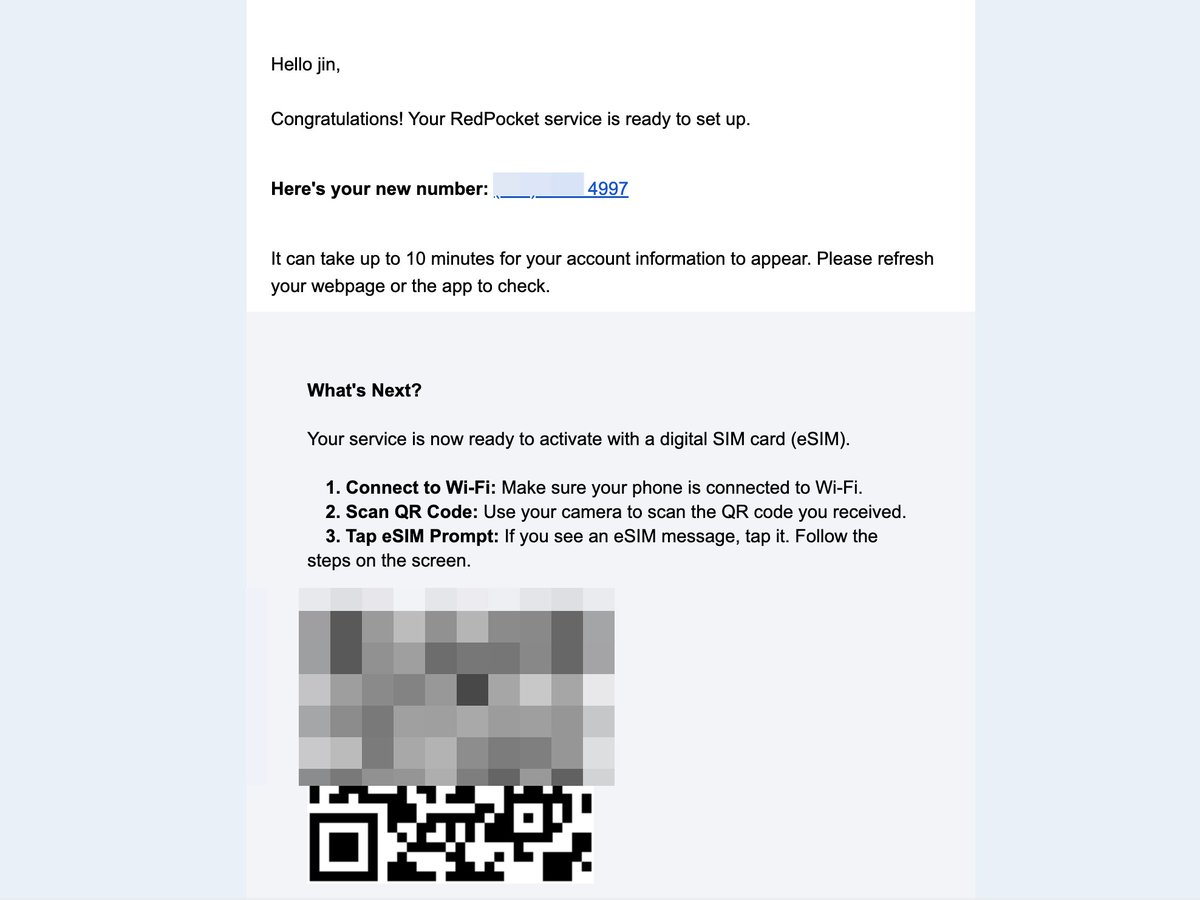
At this point, the US number should be able to send and receive texts and make and receive calls.
Besides linking to Claude, this RedPocket US number can be used for many other overseas account verifications, so it is useful to keep. This was the final option I chose after comparing seven or eight providers, and I found it excellent value.
9. Subscribe to Pro and Max
- Click “Upgrade Plan.” By the way, Claude does not have a Chinese interface, so it is worth learning English!
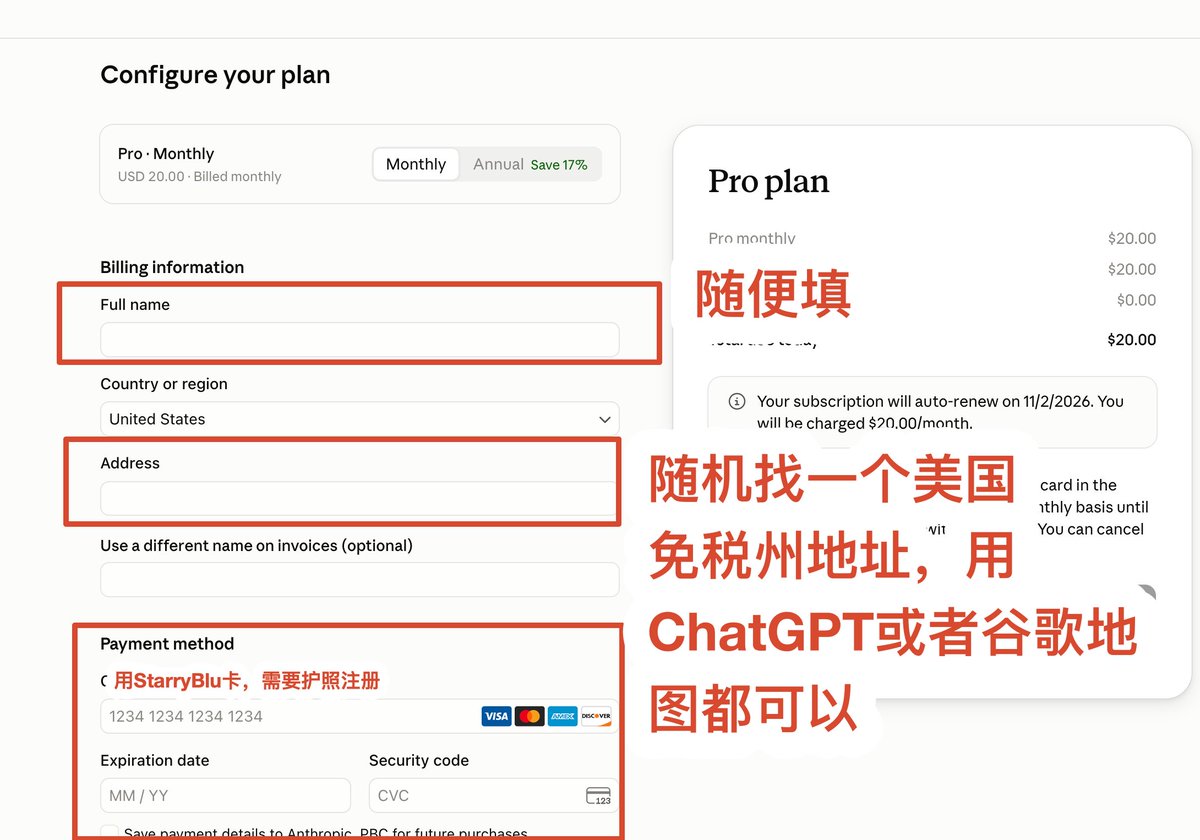
- Upgrade to Pro first. Jumping straight to Max, especially 20×, can easily lead to a ban.
- For Full name, enter any English name.
- For Country or region, select United States.
- For Address, use ChatGPT or Google Maps to find any address in a state without sales tax. You can use the same one as before.
- Leave “Use a different name on invoices” blank.
After using Pro through the first five-hour window, I upgraded directly to Max 5×. Less than a day passed between registering the account and subscribing to Max. Upgrading to 20× should probably also be fine, as long as you do not exhaust the weekly allowance. Leaving 10%–20% unused should considerably lower the chance of a ban.
10. Pass KYC verification with a Chinese passport
When I upgraded to Max 5×, I ran into KYC verification. I was really anxious: I had just paid for Pro and could no longer use it? I searched Google and found how others had passed: using a Chinese passport directly.
The reasoning is that Persona, the company handling KYC, allows Chinese passports under its policies. Many Chinese people work or study in the US, so Anthropic cannot simply exclude everyone who is Chinese. The more important causes of bans may be the outbound IP and the environment settings described earlier.
Here is the explanation I referred to at the time, shown as a reference screenshot:
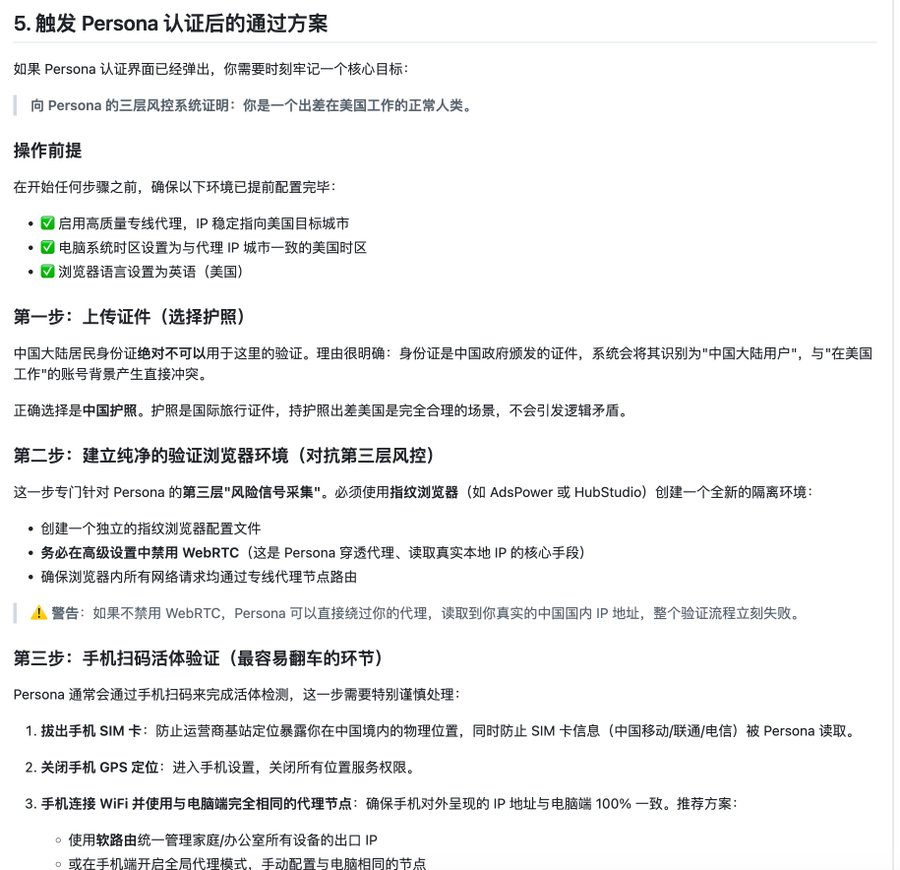
After passing KYC, I claimed the $250 in cloud Claude Code credit that Claude had recently offered and had no problems. I also use the Claude app on my phone whenever I need it, without issues. However, I have not used the Claude Code CLI, so I am unsure whether it affects the account... Please test cautiously.
That concludes this tutorial. Enjoy Claude Opus5.5! Whether for coding, conversation or design, it is excellent. Apparently Fable5.5 is not far away either. The sooner you get it, the sooner you can enjoy it!
I'm Yichen. See you next time!
References: Claude account-ban prevention guide:
https://x.com/gkxspace/status/2101993381303820704?s=20
Chinese passport KYC guide:
https://github.com/alchaincyf/zhangxuefeng-skill/issues/63